Want to increase the potential audience of your online course? Create accessible e-learning content. Accessibility is no longer a bonus feature. It’s essential for a smooth user experience and compliance with industry standards.
The shift to e-learning has considerably expanded educational opportunities for many people with disabilities. Screen readers, automatically generated subtitles, digital assistants, and specialized instructional design strategies for e-learning have made training much simpler.
This article on accessibility in e-learning guides you on creating digital content that offers equal opportunities for everyone. Discover core accessibility principles, unique needs of different learner groups, and best practices to follow. 🤩
Summary
- Key takeaways
- What is accessible e-learning?
- Why accessible e-learning matters
- Key accessibility standards and laws
- Designing for different disability categories: needs & solutions
- Best practices for accessible e-learning design
- Implement keyboard navigation
- Order objects and text correctly
- Create intuitive navigation
- Use captions with audio or video and provide transcripts
- Add descriptive Alt text
- Gather information about learner needs for branching
- Mind color contrast
- Adapt software training for visually impaired
- Use inclusive language
- Design accessible assessments
- How authoring tools support accessibility
- How to test e-learning accessibility
- Summing up
Key takeaways
- Accessible e-learning content improves experience for all users, not only people with disabilities.
- WCAG 2.1 and WCAG 2.2 are the core accessibility standards, along with Section 508 of the US Federal Law and the European Accessibility Act.
- Inclusive design requires keyboard navigation, Alt text descriptions, clear content order, and accessible assessments.
- Accessibility testing is an essential stage consisting of automated, manual, and user testing.
What is accessible e-learning?
Accessibility in e-learning is creating digital content adapted to the needs of diverse learner groups, including people with disabilities. Such courses are suitable for learners with visual, auditory, motor, cognitive, and other impairments due to the use of assistive technology and specific design approaches. The main accessible e-learning best practices include screen readers, keyboard navigation, captions and transcripts, alternative text, and sufficient color contrast.
Why accessible e-learning matters
E-learning accessibility has many practical benefits. It relies on the learning design principles every educator needs, helping organizations launch courses that are easy to navigate and follow. The main reasons to implement accessibility include:
- Equal access to education and training. An accessible e-learning design allows you to cover everyone within your organization. For example, you can launch safety training that is also suitable for employees with disabilities.
- Compliance with regulations and standards. Accessibility may be legally required depending on your location and type of organization. It’s generally mandatory for federal agencies and public-facing organizations.
- Broader audience. Inclusive design allows you to avoid cutting out a large portion of potential learners. It’s crucial for commercial educational products and initiatives that aim to reach as many people as possible.
- Improved learning experience for all users. Accessibility standards contribute to more intuitive design and easier navigation. By offering additional means to access the content, you give everyone extra options to interact with your course.
- Unique market fit. Since not all e-learning products have assistive technologies for people with disabilities, implementing these features makes your course stand out. It particularly matters in competitive educational niches when you need to win your audience.
Accessibility is also a key trend supported by top e-learning content providers. They set the bar, and you should follow e-learning accessibility standards to keep up and stay competitive.
Key accessibility standards and laws
The requirements you must follow depend on your location, as standards for the US, Europe, and other regions differ. Make sure to research the demands for your target market before designing e-learning materials or using course development services. Below are the most influential accessibility standards and laws to check out:

📌 WCAG 2.1 and 2.2 (Web Content Accessibility Guidelines)
WCAG 2.1 and WCAG 2.2 (Alastair Campbell. Web Content Accessibility Guidelines (WCAG) 2.2. W3C. 2024) are international standards by the World Wide Web Consortium (W3C). They provide recommendations on designing web content for users with disabilities, including e-learning materials. WCAG 2.2 builds on top of 2.1 by adding nine new criteria and putting more emphasis on cognitive, low-vision, and mobile motor accessibility. WCAG is organized into success criteria split into three levels: Level A (minimum requirements), Level AA (most commonly adopted legal and organizational accessibility), and Level AAA (enhanced accessibility).
📌 The POUR Principles
The POUR Principles are a part of WCAG. Web Content Accessibility Guidelines rely on the four principles, requiring the design to be Perceivable, Operable, Understandable, and Robust, which means:
- Perceivable. Presenting content in ways people can recognize and use regardless of what senses they rely on.
- Operable. Enabling users to operate the interface easily.
- Understandable. Adding clear instructions and predictable interactions to improve understanding.
- Robust. Designing content compatible across devices, web browsers, assistive technologies, and operating systems.
📌 Section 508 (US Federal Law)
Section 508 is part of the US Rehabilitation Act of 1973 that governs US federal agencies (Section 508 of the Rehabilitation Act. Section508.Gov. 2026). Section 508 compliance requires agencies to provide disabled employees and members of the public equal access to electronic and information technology. In terms of e-learning design, it means federal training materials must meet accessibility requirements.
📌 ADA (Americans with Disabilities Act)
The Americans with Disabilities Act is a US civil rights law (Americans with Disabilities Act of 1990, As Amended ADA.Gov. 2026.) stating that physical or mental disabilities must in no way diminish someone’s right to fully participate in all aspects of society. While not fully dedicated to e-learning course development or mentioning it directly, ADA compliance covers online learning among other digital services.
📌 European Accessibility Act (EAA)
The European Accessibility Act (Directive (EU) 2019/882) is an EU standard that covers products and services identified as most important for persons with disabilities. Computers and operating systems, smartphones, and e-books are among them.
The EAA unifies national accessibility requirements to provide all EU member states with the same guidelines. If you operate in the EU or design e-learning content for EU citizens, pay close attention to this directive. It doesn’t mention e-learning directly, but your product or service may fall under it.
📌 Other national regulations
Some countries implement national accessibility regulations that may complement or supersede international requirements. The United Kingdom passed the Equality Act in 2010. Canada has the Accessible Canada Act and additional provincial legislation. Japan follows Industrial Standard JIS X 8341, overlapping with WCAG.
There is also the universal design for learning (UDL) framework developed by the Center for Applied Special Technology (CAST) to promote variable learning experiences and SCORM, an industry-standard format adapting content for LMS use. They are not mandatory, but can guide you on how to create e-learning materials that balance the needs of diverse learner groups.
Designing for different disability categories: needs & solutions
The approach to instructional design services depends on your main audience. When, for example, e-learning courses are intended for users with visual impairments, you must shift focus from visuals to audio content. The broader review on “Accessible and inclusive online learning” highlights a lack of self-directedness and communication, inaccessible content, singular means of demonstrating knowledge, and timing delays as the main issues (Amy Lomellini, Patrick R. Lowenthal, Chareen Snelson & Jesús H. Trespalacios. Accessible and Inclusive Online Learning in Higher Education: A Review of the Literature. Journal of Computing in Higher Education. 2025).
Here’s what to take into consideration when designing for different disability categories:
👉 Visual disabilities
Learners with visual disabilities may be blind or have low vision. Color blindness is another common issue. You will need to implement assistive technologies such as screen readers, screen magnifiers, and high-contrast display. It’s also important to support keyboard-only navigation and use descriptive link and button labels.
👉 Hearing disabilities
People with hearing loss or deafness have trouble with spoken content in videos and audio recordings. That’s why they need captions for all videos, transcripts for audio recordings and podcasts, and visual indicators instead of audio notifications. You must duplicate all important information in text. In some cases, sign language interpretation is needed.
👉 Physical and motor disabilities
When creating a course for learners with motor disabilities, design for limited hand movement, tremors, and reduced dexterity. We also recommend alternative input devices, such as switch controls, eye tracking, or voice recognition software. Avoid actions that require complex movements or precision. Note that users may need more time to complete activities.
👉 Cognitive and learning disabilities
People with dyslexia, ADHD, and autism spectrum disorder often have difficulties with reading, concentration, and problem solving. To make the learning process easier for them, break content into smaller portions and use simple, straightforward language. Microlearning modules that present one piece of content at a time are a great choice as well.
👉 Speech and communication disabilities
Learners who have difficulty speaking should be able to submit written responses instead of group discussions. Provide them with chats or discussion forums to interact with peers and exchange knowledge. It’s also important to allow multiple formats for assignments and tests.
👉 Neurological disabilities
Neurological conditions considerably vary as well as their impact on the learning process. The most common examples include epilepsy, migraines, multiple sclerosis, and TBI. These conditions may impair concentration, vision, fatigue levels, and sensitivity to flashing content. Therefore, you should avoid unnecessary motion or animations and use uncluttered page layouts instead. They reduce cognitive load, allowing people with neurological disabilities to study more effectively. We also recommend avoiding tasks with strict timing, as they create unnecessary pressure and cause more harm than good.

Best practices for accessible e-learning design
There is no universal approach for creating an accessible design. You have to understand the needs of potential students and learning objectives to adapt the learning experience design accordingly. Below are the main recommendations on how to make e-learning accessible.
📌 Implement keyboard navigation
For learners who cannot use a mouse or touchpad, every important activity, object, and element must be keyboard accessible. For example, instead of using drag-and-drop navigation, provide keyboard-selectable lists where users can press Up or Down buttons to answer.
“If keyboard focus can be moved to a component of the page using a keyboard interface, then focus can be moved away from that component using only a keyboard interface, and, if it requires more than unmodified arrow or tab keys or other standard exit methods, the user is advised of the method for moving focus away”. (Alastair Campbell. Web Content Accessibility Guidelines (WCAG) 2.2. W3C. 2024)
📌 Order objects and text correctly
Screen readers announce text based on the accessibility order, not the visual layout. That’s why you need to arrange content logically. This is particularly critical for people with visual impairments who navigate content from left to right and top to bottom.
More useful tips on how to arrange content:
- Make sure titles are read before body text.
- Announce instructions before interactive activities.
- Place buttons after the related text.
- Add captions before a graphic.
- Avoid using more than one column of content (screen readers read everything from left to right anyway).
📌 Create intuitive navigation
Learners should always understand where they are and what actions are expected. Stay consistent across the course, using the same controls in the same locations.
At the same time, you need to avoid persistent navigation. Imagine a screen reader announcing the same instructions on each slide, forcing learners to listen to them over and over. Offer users the option to press the Enter key if they want to skip player navigation and go to the first object on the slide.
📌 Use captions with audio or video and provide transcripts
Adapt content to people with hearing impairments by using captions. This will also make the course easier to follow for learners who are not fluent in the spoken language. You may also include transcripts of audio and video along with captions for deaf-blind learners who use refreshable braille. For demo videos, we recommend describing the steps of the process in an additional document for extra clarity.

📌 Add descriptive Alt text
Alt text allows screen readers to announce what an object is about, making it essential for people with visual impairments. For example, if you include a chart showing an annual healthcare market growth, an alt text should describe “The healthcare market has grown from 2.2 billion to 2.5 billion USD from 2023 to 2024.”
“Provide text alternatives for any non-text content so that it can be changed into other forms people need, such as large print, braille, speech, symbols, or simpler language” (Alastair Campbell. Web Content Accessibility Guidelines (WCAG) 2.2. W3C. 2024).
Here are some more tips on how to add Alt text:
- Balance being concise vs. being accurate.
- Convey only the information not mentioned in other on-screen text.
- Avoid punctuation and abbreviations as the screen reader will read them aloud.
- Leave out decorative images using empty alt text (alt=””).
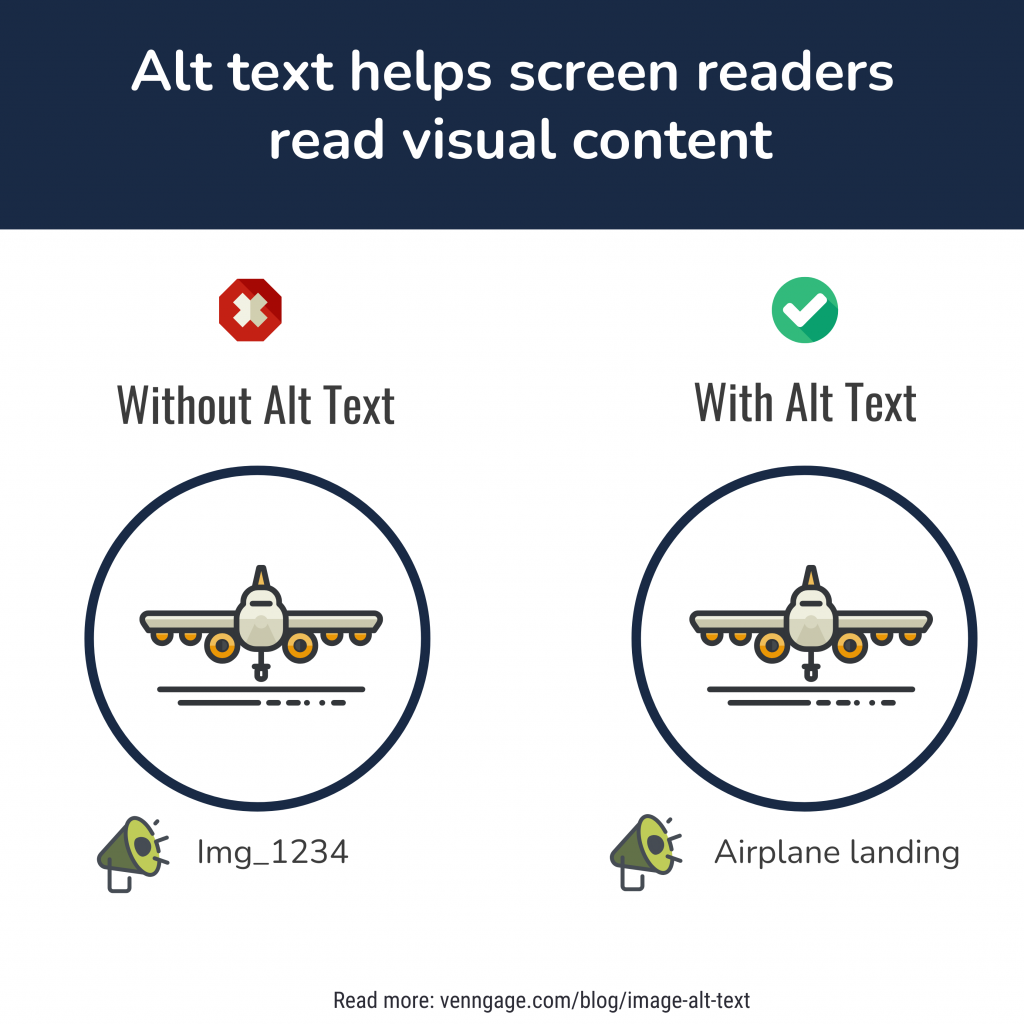
Design example (Jessie Strongitharm. Image Alt Text: Definition and Best Practices for Accessible Designs – Venngage Blog. Venngage Blog. 2023)
📌 Gather information about learner needs for branching
Since the needs of different disability categories and general learner groups vary, branching can be highly effective. It brings personalization by tailoring learning paths to students’ preferences.
At the start of the course, students can select the necessary accessibility features and indicate their level (e.g., Beginner/Advanced) or pass a quick assessment. Then, an e-learning platform like Articulate automatically adjusts learning options to their current knowledge and skills.
📌 Mind color contrast
Proper color contrast makes text, buttons, and other elements easy to distinguish from their background. This simplifies learning for people with low vision and color blindness.
You can follow the WCAG requirements stating that (Alastair Campbell. Web Content Accessibility Guidelines (WCAG) 2.2. W3C. 2024):
“The visual presentation of text and images of text has a contrast ratio of at least 4.5:1, except for the following:
- Large-scale text and images have a contrast ratio of at least 3:1.
- Text or images of text that are part of an inactive user interface component, decoration, or a part of a picture with other significant visual content have no contrast requirement.
- Text belonging to a logo or brand name has no contrast requirement.”
📌 Adapt software training for visually impaired
Software training may be particularly complicated for people with visual impairments as it includes lots of demonstrations and simulations. While sighted learners use a mouse, keyboard, and their sight to explore the content, people with disabilities are limited to a keyboard and screen reader.
To create accessible content, implement keyboard navigation and provide instructions on how to complete each task with a keyboard. Add Alt text for labels, buttons, and other critical elements. It may be helpful to provide a full-text equivalent in addition to the transcript of the simulation, with detailed screen descriptions.
📌 Use inclusive language
Stay respectful and use plain language that is easy to understand and gives clear instructions. It’s also a good idea to avoid idioms, slang, or culturally specific references and use examples everyone can relate to.
📌 Design accessible assessments
Assessments must focus on an individual’s progress, not on their ability to perform a specific task. Accessible assessments mean every task is easy to comprehend and complete with keyboard navigation and screen readers. Consider increasing assessment time or avoiding time limits altogether.
How authoring tools support accessibility
Specialized tools for e-learning design have accessibility features you can use to create content with inclusivity in mind. While Articulate is the most renowned e-learning development platform, you can also choose from several other alternatives listed below:
- Articulate Storyline supports keyboard navigation and focus order, JAWS, NVDA, and VoiceOver screen readers, alt text for images and objects, and an accessibility checker. Our team has used Articulate Storyline to create a global data privacy training with accessible design. Read the case study to learn more about the design process and outcome.
- Articulate Rise has built-in keyboard navigation, responsive course layouts, alt text for images, screen reader compatibility, and closed captions and transcripts for multimedia. You can also set up accessible navigation with minor configuration skills.
- Adobe Captivate provides keyboard navigation, screen reader support, alt text for images and interactive objects, audio and video captions, and reading order controls.
- Lectora has rich functionality for WCAG-compliant course development, including keyboard navigation, tab order management, screen reader support, alt text descriptions, accessible forms, and an accessibility checker.
Note that these tools do not automatically make e-learning content accessible. You will need instructional design skills to combine suitable types of activities. It’s also necessary to align content with learning objectives and structure different modules logically.
How to test e-learning accessibility
Before your e-learning content reaches real people, you need to carefully test it. Testing usually combines manual checks, automated tools, and user feedback to get the full picture.
👉 Automated approach
The main purpose of automated testing is to check large volumes of content for quick results. Some e-learning tools, such as Articulate Storyline, have built-in accessibility checkers. Alternatively, you can use WAVE, axe DevTools, or Lighthouse to detect issues that may prevent people with disabilities from exploring the content. These tools scan web content against WCAG requirements, highlight violations (e.g., missing alt text, poor color contrast, incorrect heading structure), and may provide recommendations on fixing them.
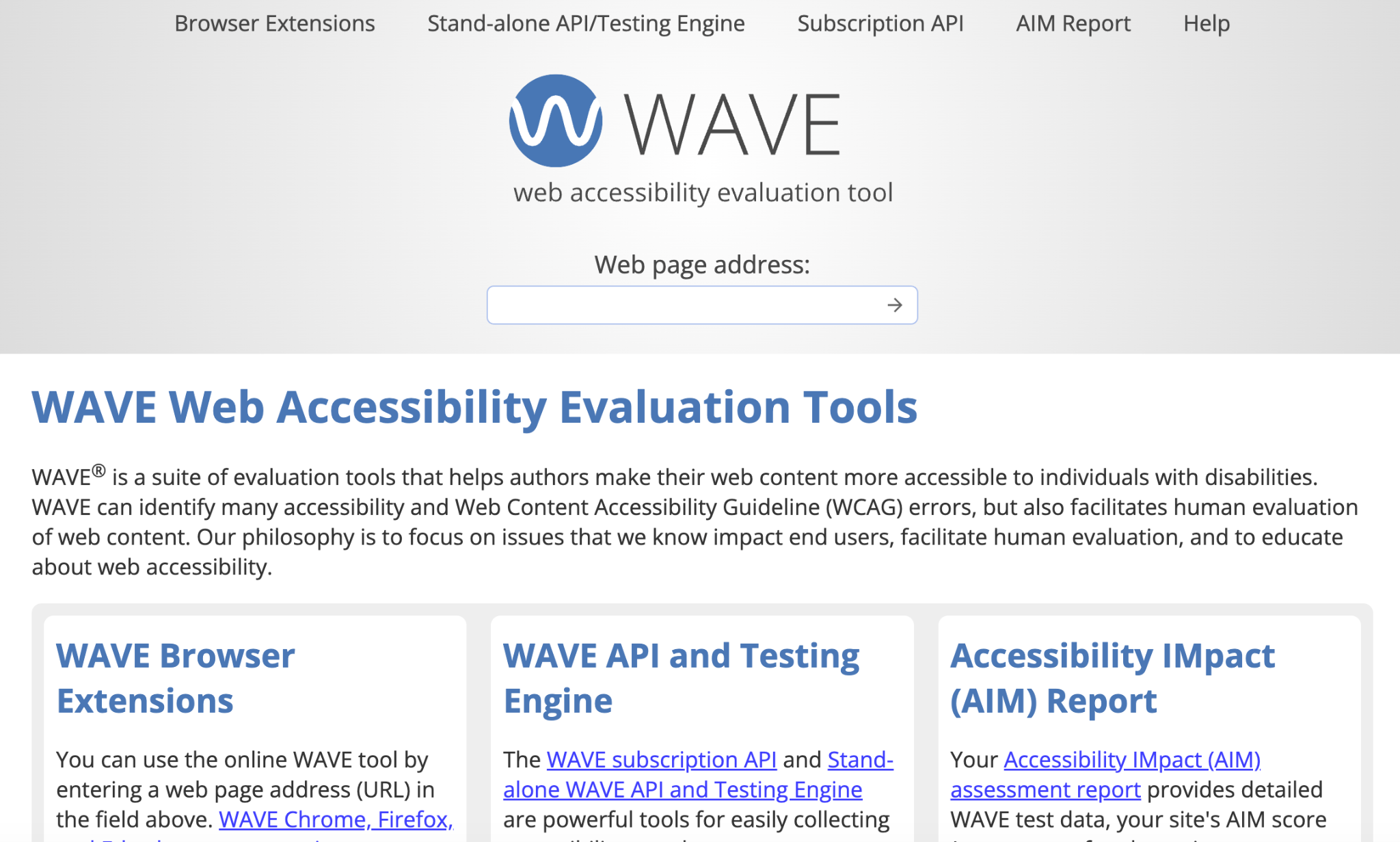
Design: (WAVE Web Accessibility Evaluation Tools. 2026)
👉 Manual testing
Try to navigate and complete e-learning activities yourself using a keyboard or assistive technologies only. Check every button and pass quizzes. This can help you spot the issues that automated tools missed.
👉 User feedback
Engage people with disabilities during testing and ask their opinions. Monitor their progress to see where they face difficulties, and find ways to simplify learning. You can interview them later or gather written feedback, depending on which format is more suitable.
Summing up
Accessibility standards are not mandatory in most cases, but they guide you on creating quality educational products adapted to different user needs. This way, you improve navigation for all users and increase your potential audience. If you work in regulated environments such as public services, accessible e-learning courses also allow you to stay compliant.
Designing content in line with accessibility guidelines is not only about screen reader support and including alt text. You need instructional design skills to arrange content and make it easy to process. Blue Carrot’s team adapts most of our projects for accessibility requirements and can help create content that complies with core industry standards.